Collected by avclub
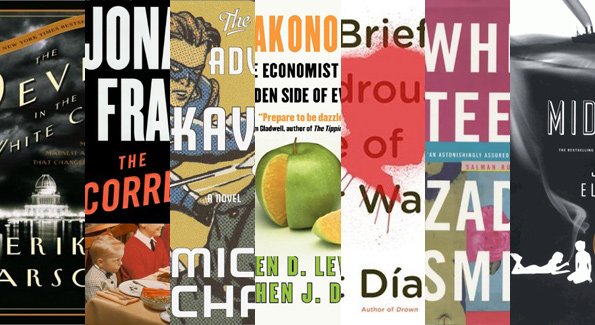
Anyone looking for trends in our selection of the best books of the ’00s might have a hard time finding them amid the wizards, 19th-century serial killers, dysfunctional families and such. Narrowing down our decisions was pretty tough, and the process required a number of back-and-forths about what was significant as well as beautifully executed, which book from a given author represented his or her best of the decade, and so on. So consider these alphabetically listed selections 30 of the many, many memorable books published this decade, and as always, let us know what we missed.
Non-fiction:
Devil In The White City (2003), Erik Larson
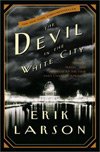 It’s easy to imagine Devil In The White City as a historic true-crime novel, devoted to telling the chilling story of the serial killer H.H. Holmes, with the Chicago World’s Fair simply serving as a backdrop. But what makes the book so remarkable is the level of detail provided by Larson’s research into the setting and the protagonists. Architect Daniel H. Burnham wanted to parlay the fair into a forum that would make Chicago a global city; his quest gets as much page time as the grim details about how Holmes murdered more than 27 young women, and it’s just as compelling. The result is a non-fiction thriller, a tale of creation and destruction filled with bizarre facts and stories that expose the best and worst of human ingenuity.
Fargo Rock City (2001), Chuck Klosterman
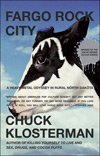 The trouble with High Fidelity is that it’s a great book about relationships and a miserably anachronistic one about music: Nick Hornby’s steadfast, monolithic devotion to the super soul hits of the ’70s fails to get anything right about the intersection of ’90s music and love. Enter Chuck Klosterman’s Fargo Rock City, the most trenchant book ever written about that ’80s punchline, “hair metal.” Over the course of his engaging, infinitely quotable discursus, Klosterman unpretentiously maps what music can mean, both within its own imposed narrative, and once it reaches the outside world. He veers all over the place: one moment he’s giving readers a detailed analysis of Guns ’N Roses’ Use Your Illusion video trilogy, and the next, he’s talking about why metal turned him into an alcoholic, and why it’s weird that Pavement never talked about the beer they were drinking. His passion is contagious: You don’t have to like (or even be familiar with) the music to be sucked into a world of beautifully argued, casually hilarious passion. In terms of books about what listening to music can mean when you love it to the point of idiocy, few are better.
Freakonomics (2005), Steven D. Levitt and Steven J. Dubner
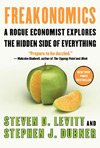 There’s often profit and acclaim in writing books that make abstruse fields of study accessible to the layman: Stephen Hawking’s A Brief History Of Time, for instance. But there’s even more glory in writing books that make those fields fun. The bestseller Freakonomics, co-authored by journalist Steven J. Dubner and “rogue economist” Steven D. Levitt, is an excellent example. By defining economics as “the study of incentives” rather than anything specifically tied to money or commercial interests, Levitt freed himself up for economics-style analysis of everything from dropping crime rates to the outcomes of sumo-wrestling matches. Like any mass-appeal, pop reevaluation of a scientific field, Freakonomics was controversial, with detractors questioning Levitt’s premises, processes, and conclusions. But just opening up the field to a wider consideration and discussion was a victory, and Levitt and Dubner’s lively prose and intriguing conclusions were icing on the cake.
Nickel And Dimed: On (Not) Getting By In America (2001), Barbara Ehrenreich
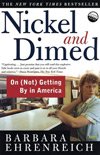 Barbara Ehrenreich’s exploratory journey through the struggling underbelly of American society, undertaken when she realized how many women were being forced into minimum-wage jobs, and decided to try some herself, is emotionally draining but intellectually illuminating. Now, after the great financial collapse of 2008, the work reads more and more like prophecy, as untold millions struggle to scrape up enough change to just make rent, to say nothing of trying to buy food, or care for their kids. Ehrenreich’s travels take her from waitressing to Wal-Mart, and at all turns, she feels desperate and belittled, a feeling many people rudely tossed atop the unemployment line now share. It’s rare that a social-issues book becomes more prescient as time goes by, but Nickel And Dimed is an urgent exception.
Nixonland (2008), Rick Perlstein
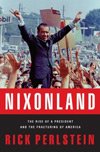 The long 5 o’clock shadow over American politics gets his due in Perlstein’s exhaustively detailed tome on how the 37th president shaped his country. Richard Nixon’s long-building resentment toward the privileged, plus his conviction that disadvantaged men like himself deserved to be in charge, allowed him to exploit a widening gap between the counterculture and the counter-counterculture, invoking the cues that built a majority to carry him to the White House. Rejecting facile explanations of the aftermath of the 1960s, Perlstein redraws the map of two turbulent decades and picks apart the faux-populism that still inflects political discourse today, drawing those parallels without emphasizing them.
Pictures At A Revolution: Five Movies And The Birth Of The New Hollywood (2008), Mark Harris
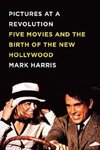 This account of the making of the five movies nominated for the Best Picture Oscar of 1967—Bonnie And Clyde, Doctor Dolittle, The Graduate, Guess Who’s Coming To Dinner?, and the winner, In The Heat Of The Night—is one of the great Hollywood books: deeply reported, sharply nuanced, and hugely entertaining even when ping into production minutiae. Harris doesn’t caricature subjects even when the temptation must have been overwhelming, such as drunken, racist Dolittle star Rex Harrison, soft-liberal Dinner producer-director Stanley Kramer, and haughty New York Times film critic Bosley Crowther, whose one-man crusade against Bonnie And Clyde cost him his job. And the great stories are innumerable, as when The Graduate director Mike Nichols breaks down the skepticism of producer Joseph Levine over Nichols’ multiple uses of Simon & Garfunkel’s “Sounds Of Silence” in its first 40 minutes: “I ran it, and he said, ‘I smell money!’” says Nichols, “thereby endearing himself to Paul Simon for all time.”
Them: A Memoir Of Parents (2005), Francine Du Plessix Gray
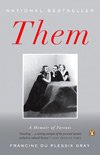 In a decade marked by the memoirs of angry children determined to mine some authorial gold from their unhappy early lives, Du Plessix Gray’s chronicle of growing up as an immigrant in mid-century New York relates history rather than agony, building subtly toward judgment while still acknowledging a debt of gratitude. Francine’s mother and stepfather, Russian émigrés who fell in love in Paris while they were both married to other people, were artistic geniuses and unrepentant social climbers, too exhausted or indifferent to be proper parents. With her eye to the keyhole, Du Plessix Gray weaves her early recollections into a riveting biography of two strangers she happened to live with, balancing memories of their often-irrational behavior with a sparkling account of their talents as celebrated by the world.
The Tipping Point (2000), Malcolm Gladwell
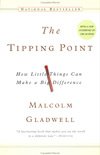 Malcolm Gladwell’s bestseller looked to epidemiology to explain how ideas and phenomena blew up, and ended up becoming its own proof for the theory. Who doesn’t know what a tipping point is now? Who could have said that a decade ago, before Gladwell started playing with the idea, then saw others popularize and spread it? While some of Gladwell’s example have been challenged—The Tipping Point’s view of declining crime rates contrasts sharply with the one found in Freakonomics—the concept seems not only solid, but downright prescient, arriving as it did before talk of Internet memes became a part of casual conversation.
The Wisdom Of Crowds (2004), James Surowiecki
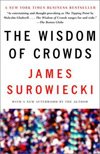 Crowdsourcing would have remained an empty dot-com buzzword if James Surowiecki, the perceptive New Yorker business writer, hadn’t put real-life example and surprising science behind it. His persuasive book shows how properly constituted groups outperform inpidual experts, even on tasks where no member of the group seems to contain the relevant expertise. From the very first example—a county-fair guess-the-number-of-gumballs-in-the-jar contest—through the much-maligned terrorism-predicting “markets” set up by U.S. intelligence in the wake of 9/11, Surowiecki cuts through common-sense solutions to show that our reliance on pundits and geniuses is misplaced. Together, we know more than Alan Greenspan knows separately, which reveals our culture of overpaid technocrats to be thoroughly backasswards. Pair this book with Malcolm Gladwell’s Outliers, and you have a blueprint for a truly enlightened democratic capitalism.
The World Without Us (2007), Alan Weisman
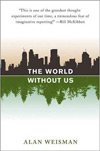 The environmental-writing market boomed in the ’00s, as more and more people became convinced that climate change would doom us all within the century. But few environmental books have the terrific gimmick or evocative writing of Weisman’s The World Without Us. Weisman starts from an irresistible premise—how long would it take the planet to erase all traces of human society if we all disappeared tomorrow?—but bolsters it with a tremendous feel for place, sticking readers in the middle of the quiet solitude of the last old-growth forest in Europe, or the controlled chaos of an oil refinery, with equal ease. Weisman managed the rare feat of getting readers to consider their impermanence while also thinking about how it might be a good thing.
Fiction:
The Amazing Adventures Of Kavalier & Clay (2000), Michael Chabon
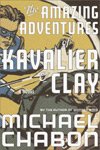 By the end of the decade, it had almost become a cliché for authors to wed pulp influences to the sorts of epic family sagas that defined American fiction. But when Michael Chabon tried it with Kavalier & Clay, it felt fresh and new. Though he wasn’t the first to dabble in blending these influences, his was the breakthrough novel that made the technique safe for others to try. And even now, after all the imitators, his book still feels alive in a way that few pulp novels or epic family sagas do, as it follows two boys in Great Depression New York City who invent a comic-book superhero. While the book’s occasional trips off into pulp adventure can seem a little goofy, its wistful, romantic heart and longing for Golden Age archetypes to chart a course for truth and justice remain potent.
Atonement (2001), Ian McEwan
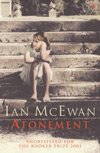 On paper, it sounds like the most boring novel ever: yet another examination of repressed Britons on the eve of World War II. Instead, Ian McEwan turned the story of a forbidden love affair and a young girl on the edge of comprehending adult interaction, but not quite there yet, into a moving examination of guilt, forgiveness, and the power of fiction. The novel’s opening passages—where said young girl makes a terrible mistake and accuses her sister’s lover of a crime he didn’t commit—are written with keen psychological insight and leisurely pacing that nonetheless remains tense. But in the book’s following sections, McEwan’s games with narrative structure and unreliable narrators become something else altogether, an increasingly sad look at how little power stories have over real life.
Bel Canto (2001), Ann Patchett
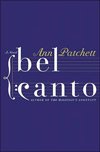 In December 1996, a group of Peruvian revolutionaries began a hostage crisis in the official residence of the Japanese ambassador in Lima that ended violently more than four months later. Ann Patchett was paying attention, and her novel finds a bittersweet lyricism in a fictionalized take on the same event. Stuck together, hostages and hostage-takers find the factors piding them—politics, language, and in one of the central relationships, the distance between a famous opera singer and a devoted fan—matter less than the needs that unite them. The grace they find can’t last, however, and like the music that helped inspire the novel, Patchett earns her novel’s heartache by suggesting the possibility of a sweeter, more beautiful world.
The Blind Assassin (2000), Margaret Atwood
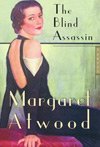 Canadian author Margaret Atwood has shown a career-long interest in gender relations and generational changes, particularly how the past gives way to a present that only dimly and incorrectly remembers what came before. That obsession gets worked out in a number of absorbing ways in one of her most ambitious, artful novels to date: The Blind Assassin follows several interlocked threads, as Atwood plays games with identities, connections, parallels, and altered histories. In one thread, she explores the childhood of two sisters, Iris and Laura; in another, Iris is a cantankerous, elderly widow, and Laura is an apparent suicide whose posthumously published novel became an enduring classic. Atwood only gradually reveals what happened between these bookends, and she keeps readers guessing, as it becomes clear that what the world remembers about Laura has very little bearing on what actually happened. Like many Atwood novels, Assassin is a puzzle box, but luminous writing, well-drawn characters, and the keenly melancholy theme of generational amnesia have more to do with the novel’s success than the series of reveals Atwood puts her readers through.
Brief Wondrous Life Of Oscar Wao (2007), Junot Díaz
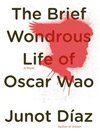 It’s lonely on the corner between Hispanic slang and geek culture, but this 2008 Pulitzer-winner’s “lovesick nerd” Oscar de Leon can only dream about hanging out somewhere else. The frenetic multi-generational saga of family curses and the legacy of Dominican dictator Rafael Trujillo is a hero’s tale and a fantasy homage rising out of a thicket of bilingual wordplay and a glorious stew of cultural references. Oscar’s determination to overcome his fate, set into motion when his grandfather runs afoul of Trujillo’s wishes, captivates even the jaded sometime narrator Yunior, faithful to his memory even though he was unable to be to his sister.
Carter Beats The Devil (2001), Glen David Gold
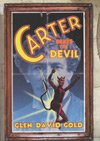 Popcorn fiction and historical fiction were both sneered at more often than not in the ’00s, as poorly written tales of the secret history of everything overwhelmed the bestseller charts. Enter Gold’s debut novel, a romp through early 20th-century San Francisco and the world of vaudevillian magic that makes few claims to historical veracity, and rockets along like the best page-turners. But Gold’s novel is about more than how a sad magician finds love and constructs the ultimate illusion while avoiding assassins and those who suspect him of killing the president. It’s also about moving on past crippling loss, overcoming depression, and learning how to feel again. Gold’s pacing makes Carter easy to read, but his sense of emotion makes it take up space in the heart.
The Corrections (2002), Jonathan Franzen
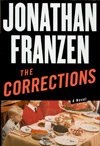 The Tolstoy-esque family novel got its 21st-century upgrade early, and has withstood all comers since. The Lamberts’ disintegration under the pressures of work, illness, and love unfolds with a cynical humor that strips the family’s pretensions away until only their most craven selves survive as they struggle to break free. As these unsympathetic characters go through the wringer, Jonathan Franzen outlines the symptoms of modern malaise, whose only cure is being able to see through the layers of protective self-delusion. The modern dysfunctional family wriggles under Franzen’s microscope, but its features are all too familiar. Oprah, take note: His next book, Freedom, is due to arrive next fall, just in time to inform the next decade.
The Curious Incident Of The Dog In The Night-Time (2003), Mark Haddon
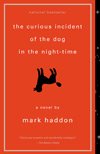 Written from the perspective of an autistic boy obsessed with detective work, Mark Haddon’s astounding tightrope act portrays his protagonist’s richly odd inner life and places it in the context of a suspenseful journey outside his comfort zone of numbers, routines, and maps. Plunged into an unfamiliar world of train travel and self-reliance, Christopher tries to find out who killed his neighbor’s dog, emulating his hero Sherlock Holmes, and trying not to be fooled by fake phantasms like Holmes’ creator. Not merely the finest fictional depiction of the autistic brain yet produced, Curious Incident is also among the best page-turning thrillers of the decade.
Empire Falls (2001), Richard Russo
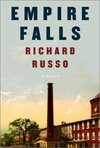 Much of America made it out of the 20th century badly equipped to deal with the 21st. Richard Russo’s Empire Falls is set in just such a place, a rust-belt Maine town that’s kept going even though the industry that led to its creation can no longer sustain it. Russo brought his by-then-familiar command of memorable characters and comic moments to a novel more ambitious than any he’d attempted before. The book captures a time and place unnerved by a future that offers no reassuring promises of a better tomorrow beyond the comfort its inhabitants can give each other.
Fortress Of Solitude (2003), Jonathan Lethem
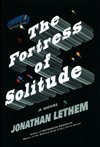 Maybe Jonathan Lethem didn’t set out to create a magnum opus with Fortress Of Solitude, but that’s what he ended up with. The novel ties together a lifetime of obsessions—with music, art, fathers and sons, comics, and more—and grounds them in the 1970s Brooklyn of Lethem’s childhood. It’s a place of sadness, peril, and racial unease, but it’s also overflowing with the imaginative possibilities of childhood, at least until crises and looming adulthood start to shut them down. It’s a novel immersed in the past, but deeply distrustful of nostalgia and fully aware that the pain of youth has a habit of lingering, and even the presence of magic does little to secure happiness.
Gilead (2004), Marilynne Robinson
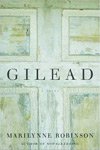 Twenty-three years after the luminous Housekeeping, Robinson proved herself one of the greatest American writers of her generation, winning the 2005 Pulitzer Prize for literature for her equally heartbreaking Gilead. Few could have predicted that the same pen that channeled orphans Ruth and Lucille coming of age in rural Idaho could so masterfully evoke an aging Congregationalist minister, looking back over his life with wonder for the grace given him but regret for his namesake, the son of a good friend who never took the path his elders would have chosen for him. Replete with references to Calvin, Ludwig Andreas von Feuerbach, and other thinkers with whom Reverend Ames takes respectful issue, Robinson’s novel serves as a gentle theological treatise, but it never loses the glow of human relationships.
Harry Potter And The Half-Blood Prince (2005), J.K. Rowling
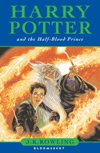 Arguments for and against its place in the Great Western Canon aside, the Harry Potter series was undeniably the biggest literary phenomenon of the ’00s. Though the first installments from the ’90s were inarguably children’s books, beginning with 2000’s Harry Potter And The Goblet Of Fire, the series began to morph into something decidedly more complex, reaching its apex in 2005 with Harry Potter And The Half-Blood Prince. The penultimate entry in the seven-part series is most notable for the shocking death at its climax, probably the series’ most unexpected, harrowing moment. But even more remarkable is the fact that it spends 650-plus pages basically filling in backstory and moving pieces into place for the series’ conclusion without sacrificing momentum or character development. (Though it perhaps attempts to cover too much ground at times, giving some elements short shrift.) In spite of whatever other limitations she has as a writer, J.K. Rowling is at her best in Half-Blood Prince, capably unspooling her epic yarn in the straightforward yet enthralling manner that accounts for the series’ unprecedented success.
Jonathan Strange & Mr Norrell (2004), Susanna Clarke
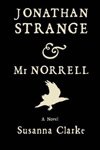 It’s the kind of literary mash-up that’s simultaneously strikingly original and comfortingly familiar: Take a sort of idealized version of the Victorian-era novel, with all its drawing-room manners and morally repressed emotions, and insert some magic. And not the symbolic kind, either—actual magic, with rules, mysteries, and all kinds of difficult-to-fathom but impossible-to-ignore dangers. Susanna Clarke’s first novel is the warmly readable study of a frequently chilly world, a story to get lost in about the seduction of being lost, and an exhaustively researched tome on a subject whose research is entirely fictional. Ten years in the writing, Jonathan Strange & Mr Norrell still feels as light as a feather, and its tale of the friendship and rivalry of the two greatest magicians of their age has the ageless quality of all truly great fantastical fiction, reassuring without being entirely trustworthy, and utterly intoxicating.
Middlesex (2002), Jeffrey Eugenides
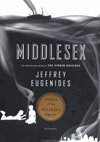 Jeffrey Eugenides’ long-in-the-making follow-up to The Virgin Suicides adds layer after layer around a kicky, potentially sensationalistic premise. Cal is born Calliope to a family of Greek descent, and spends years living as a girl, unaware of the intersexed condition that makes him genetically male. Jeffrey Eugenides follows the path of the gene that leads to that surprising revelation, tracing it back to Old World conflicts between Greece and Turkey while considering its place in the novel’s sharply realized 20th-century New World of 1970s Michigan. The past doesn’t die, it just mutates, and maybe, hopefully improves, on its way from one generation to the next.
Never Let Me Go (2005), Kazuo Ishiguro
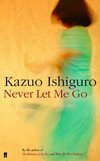 Mainstream authors of literary fiction self-consciously slumming it in genres of ill repute ended up being one of the surprising movements of the ’00s. While most of these novels and stories were too aware of their genre roots, Kazuo Ishiguro’s tale of two girls who slowly realize the true nature of their existence keeps what’s best about his writing—his sense of the world as an ephemeral place that could pop out of being at any moment—and weds it to the best dystopic science fiction’s sense of raw humanity breaking through in a sterile world. Like the similar literary science-fiction experiment The Road, Never Let Me Go ends up becoming a testament to the many ways love finds to stay alive.
The Road (2006), Cormac McCarthy
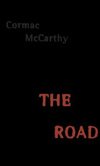 A father and son travel through a post-apocalyptic America, half-starved, choking on a never-ending stream of ash sifting down from the sky, and with no hope for an end to their suffering beyond dissolution and death. Much has been made of the bleakness of Cormac McCarthy’s 2006 novel, but given its subject matter, the bleakness isn’t all that surprising. What is surprising is the way McCarthy manages to find a modicum of purpose in all that despair, creating a world in which all normal reasons for living—accomplishment, social structure, the possibilities of the future—have been ruthlessly stripped away, then showing how existence still struggles onward, in spite of all barriers against it. It’d be a stretch to call The Road uplifting, and the book has more than its share of horrors, but what makes it such a powerful, wrenching experience isn’t the aftermath of society’s collapse, but the suggestion that, even removed from sentimentality, the basic forward momentum of a dependent and his protector remains. Things don’t have to be good to continue, but they will continue, and sometimes that’s all that’s left.
The Story Of Edgar Sawtelle (2008), David Wroblewski
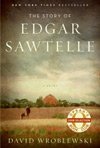 Wroblewski’s first novel retells the story of Hamlet on a farm in northern Wisconsin, and with some of the characters replaced by dogs bred by the Sawtelle family for extraordinary intelligence. And not a word of this lengthy, immersive journey into the struggle of young Edgar to break through the dangerous relationship between his uncle and his mother feels like a gimmick. Full of detail about the training methods that make the Sawtelle dogs special, and anchored by a fugitive quest for justice with only adolescent and canine wits to sustain them, Edgar’s story has the mesmerizing quality of great literature. It’s a world that feels found by accident, unknown to outsiders, and so beautifully tragic that readers will beg the pages to turn more slowly.
The Terror (2007), Dan Simmons
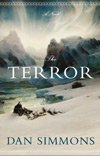 In 1845, Captain John Franklin led two ships on a hunt through the Arctic for the fabled Northwest Passage. Both ships became icebound in the Victoria Strait, and all 128 men were lost. It’s hard to imagine a more horrible way to die, starving slowly as the temperatures plunge and scurvy drives shipmates to contemplate murder and cannibalism, but Dan Simmons decided to make things worse in his 2007 novel, throwing a monster out on the ice and letting the blood flow freely. Telling the story through the perspectives of various real-life crew members, Simmons creates a tense, unrelenting narrative about survival pushed to its extremity, where an inexplicable dark god lurking at the edges isn’t nearly as upsetting as the dwindling food supplies and an actively hostile environment. As grippingly detailed as a true-life adventure narrative, with all the symbolism and tragedy that fiction can provide, The Terror is a rewarding, haunting read. Just make sure to check the thermostat before opening the cover, whatever the season.
The Time Traveler’s Wife (2003), Audrey Niffenegger
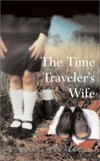 The decade was kind to debut novels of powerful imagination, and none were better poised to seize the American reading public than Audrey Niffenegger’s artfully constructed romance. Only in novelistic form could the emotions of her time-crossed lovers be fully appreciated. As readers proceed linearly through the book, Claire travels from birth to death in the normal way, while her husband Henry is yanked unpredictably through time. Told from their alternating perspectives, the story builds on the yearning and regret that comes from knowing the end before the beginning, and from being given glimpses of the future that others cannot know until it arrives. The Time Traveler’s Wife earns the tears it so copiously extracts, and creates an epic love affair perfect for the turn of the millennium.
White Teeth (2000), Zadie Smith
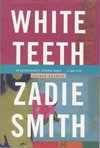 From one of the most original talents this decade produced, White Teeth follows an unconventional friendship that becomes a portal into a world where every character’s story sounds truer than the last. The chance meeting of Archibald Jones and Samed Iqbal, fellow World War II veterans who reunite in 1970s London, are just the first brushstrokes in a richly detailed portrait of a neighborhood changing faster than its inhabitants can understand as they struggle to find meaning in a world radically altered from their forefathers’. In spite of its Dickensian spread, Zadie Smith’s debut novel never feels overstuffed or self-consciously stylish. Instead, its assured tone guides readers through genetic controversy, radical Muslim groups, and past-as-prologue, toward a profound commentary on assimilation and culture in the lives of her perse subjects.
 The mighty search engine has allowed us to do so many things. “Mighty” is the operative word, as these same search engines (usually the one that starts with a “G” and ends with an “oogle”) can also curse us all. If you think about it, any schmuck can find out more about you than you’d like by typing only your first and last name.

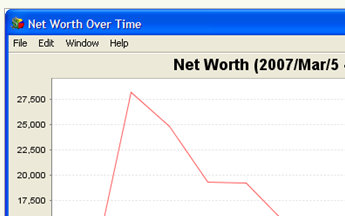 Computers: Buddi is a financial management application developed with financial non-experts in mind. Sure, it can import your CSV file from a bank or financial firm, and it does all the standard financial calculations and projections. But the way it switches between money figures, and walks you through the importing and setting up of your accounts, makes it a real open-source find, and you can easily swap profiles between your laptop and desktop systems, if needed. Looking for something with a bit more mathematical oomph? Money management alternative
 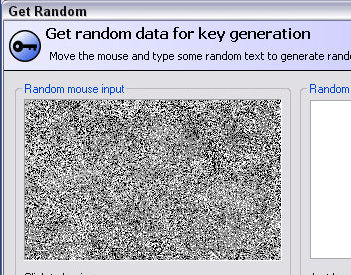 Computers, portable, cellphones: You use a multitude of applications and web sites that require passwords, license keys, and administrator codes. On one computer alone, that makes it worth having a central vault for all that stuff. If you use more than one computer, having a consistent KeePass database is really, really helpful. Encrypt your master password database with a file only you have access to, and/or a truly secure single password, and you can take that list just about anywhere—on Windows, Mac, Linux, iPhones, Android, BlackBerry, Palms, on a USB drive, or pretty much anywhere. Open-source coders love to write KeePass apps, so there’s a very good chance you’ll always have this clever password management system at your side. For help getting started with KeePass, check out
  Computers: TrueCrypt is a multi-platform security tool for encrypting and protecting files, folders, or entire drives. The software behind it is open source, and so likely to be supported and developed beyond its current version and platforms. It’s only on Windows, Mac, and Linux at the moment (though that’s no small feat), but it can be
  Computers,
  Computers,
  Computers,
  Computers,
  Computer,
  Computers, web, mobile: Dropbox creates a single folder that you’ll always be able to access, no matter where you are. That folder can actually
  Computer,
  Aviary Screen Capture
 One of the most popular Firefox extensions, and beloved by many RSS consumers is Feedly.
 It has always puzzled me why Google does not integrate their own superior RSS reader, Google Reader, into Chrome. Until that day comes though, Chrome Reader will have to suffice.
 Dotspots is an annotation service that we recently wrote about